


01Open a pull request
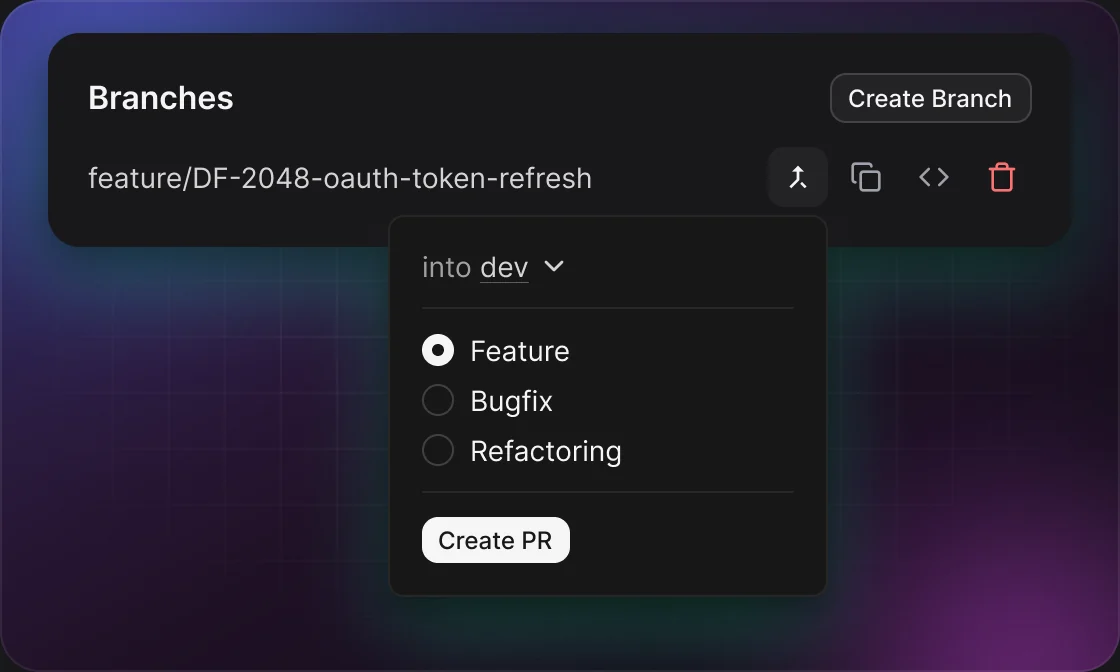
Pull requests start from a branch row in the repository card.
1
Click the merge icon
On a branch without an open pull request, click Create PR from this branch.
2
Pick the base and the type
The base branch starts on the card’s base branch. Choose a PR type if the repository has more than one — the first is preselected.
3
Mark it ready
The PR opens as a draft, assigned to you. Click Ready for Review when you’re done — that’s when reviewers are asked.
02PR types
Set up per repository in Settings → Git → PR Types. Each type fills in:
FIELDWHAT IT FILLSUSED ON
Title templateThe PR title. Empty means the issue key and issue title.Create PR, Update PR
Description templateThe PR description in markdown, with slots for the AI summary, the change list and issue details.Create PR, Update PR
ReviewersThe people asked to review.Ready for Review
PR labelsThe type’s labels plus a “type:” label, e.g. type:feature.Create PR, Update PR
The first type in the list is the default. Each type can also have its own auto-merge rules.
03Good to know
Always opened as a draft
Nobody is pinged about unfinished work. On GitLab the title starts with “Draft: ”.
AI never blocks the PR
The AI description needs the repository’s local path. Without it, or if the AI fails, the PR still opens with a short default description.
Update PR rewrites everything
Update PR rebuilds the title and description from the latest changes. Text added by hand on GitHub or GitLab is overwritten.
Reviewers come from the selected type
Ready for Review asks the reviewers of the type picked in the card’s Update PR popover — not the type the PR was opened with.
Closed PRs are hidden
Use the crossed PR icon in the section header to show them. DevFlow doesn’t reopen pull requests.
04Example
11:20Create PR on DF-2048-add-password-reset with the Feature type
11:21Draft #412 opens with the labels feature and type:feature
16:45Ready for Review asks the team lead and moves DF-2048 to Code Review